AI Inpainting Tool — Remove Anything from Photos
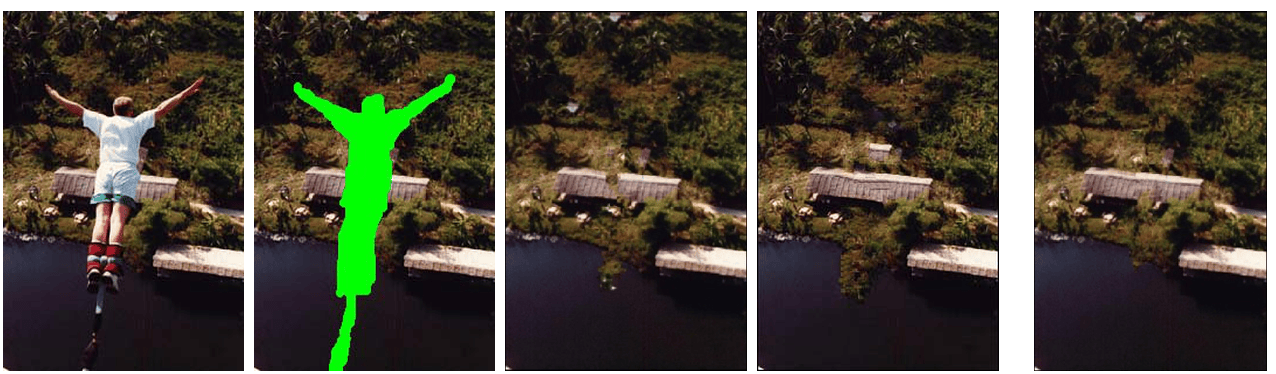
Brush over objects, people, watermarks or text you want gone. The marked area is filled with matching pixels from the same photo — free, without signup, right in your browser.
- Free
- No signup
- No watermark
- Nothing uploaded
1 · Mark what to remove
Choose a photo, or try the sample. The image never leaves this page.
2 · Check the result
The filled result appears here, next to your original for comparison.
Choose a photo to start — it stays on this page.
Runs entirely in your browser — the photo is never uploaded. Large images are scaled to at most 512 px on the long edge so filling finishes quickly; the downloaded PNG matches this working size.
How it works
- 1
Choose an image
Open a JPEG, PNG or WebP photo, or load the built-in sample. Nothing is uploaded — the file stays on your device.
- 2
Brush over it
Paint over the object, person, watermark or text you want removed. Go slightly past the edges so the fill can blend.
- 3
Download the result
The filled photo appears next to your original. If it looks right, save it as a PNG.
What it fills well — and where it struggles
This tool fills holes the way a human restorer would with tracing paper: it copies real pixels from elsewhere in the same photo. That makes it fast, free and private — and it also sets the limits.
- Works best: objects, people and text against repetitive or simple backgrounds — walls, grass, water, sky, pavement, bokeh. Watermarks and dates on fairly flat areas disappear almost invisibly.
- Struggles: large holes over complex, detailed scenes. The fill is borrowed texture, not invented content, so big removals over busy backgrounds can look smeared.
- Size: images are scaled to at most 512 px on the long edge for processing, and the download matches that size. For most sharing and web use that is plenty; for large prints, this is not the right tool.
Questions people ask first
Is it really free, with no watermark?
Yes. Filling runs on your own device, so there is no server cost to pass on. There is no account, no quota and no watermark on the download.
Where do my photos go?
Nowhere. The photo is decoded and processed inside this browser tab. No upload, no server, no copy kept anywhere.
What is inpainting, in one sentence?
Rebuilding missing or unwanted regions of an image from its surrounding pixels — read the full explainer under “What is inpainting?” below.
Why does a big removal look blurry?
The algorithm can only borrow pixels that exist in your photo. When the hole is large and the background is chaotic, there is no clean pattern to borrow, so the area smooths out. Removing the same object in smaller pieces often helps.
Can it generate new content instead?
No. This is deterministic filling from your own image — a feature, not a bug, when you need predictable, private edits. Generative fill that invents content is a different (and server-bound) class of tool.
 Fazier badge
 Verified on DANG!
 Featured on DeepLaunch.io
 Featured on Neura Market — the AI tools & companies directory
 AITOOLIST